
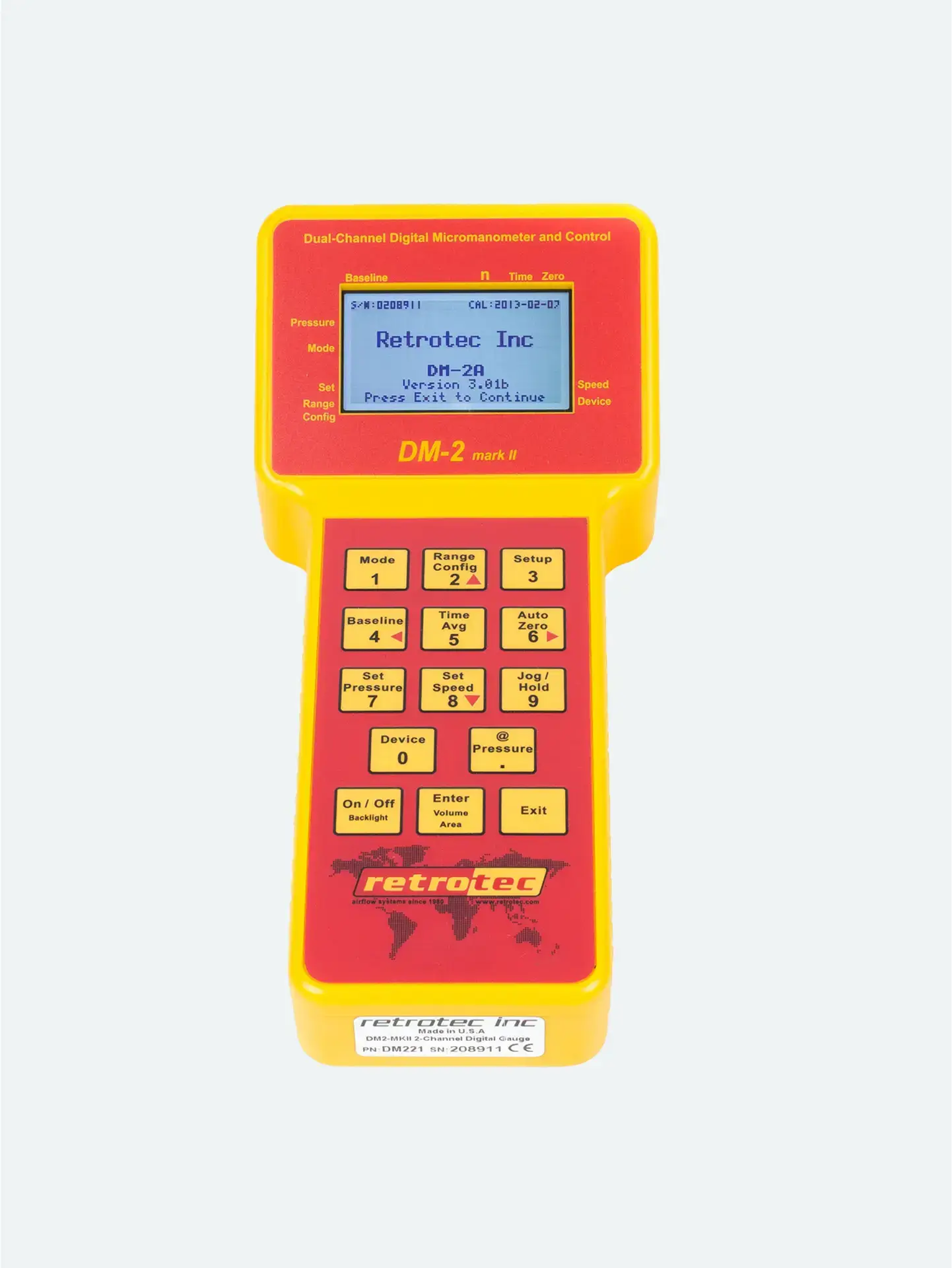
Problem #1: Flow Reads “–” at Test Pressure
What this Means:
You’ve reached the target pressure (e.g., 25 Pa), but the gauge shows no flow data.
Why it Happens:
Fan pressure is too low to push air through the current range plate—the gauge can’t register flow.
Fix it:
Add a more restrictive range plate (smaller hole).
Match the gauge’s selected range to the installed plate on the fan.
Re-adjust fan speed to achieve the test pressure.
Problem #2: Cannot Achieve Target Pressure at Full Fan Speed
What this Means:
You’re at 100% fan speed, but still below test pressure.
Why it Happens:
Too much restriction — not enough airflow to build pressure.
Fix it:
Remove a range plate or shift to a less restrictive option (larger hole).
Update the gauge’s range setting to match.
Ensure all ducts and registers are properly sealed—leaks can prevent pressure buildup.
If necessary, you can use the @ Pressure key—activating extrapolation to estimate flow at the desired pressure once close enough.
Other Helpful Adjustments
Press Channel B or use the Result to be displayed setting to switch between output modes (e.g., CFM, flow per square foot, equivalent leakage area/EqLA).
Enter building or duct area if required to display certain metrics like CFM/area or EqLA.
Quick Troubleshooting Guide
| Issue | Likely Cause | Solution |
|---|---|---|
| “–” at test pressure | Range too wide | Install smaller-hole plate; adjust gauge range; re-run test |
| Can’t reach test pressure | Range too restrictive or leaks present | Use larger-hole plate; seal all registers; update gauge range |
| Wrong result displayed | Incorrect gauge mode | Change result mode via Channel B or Settings menus |
| Just shy of pressure | Use estimation | Use @ Pressure to extrapolate flow readings |
